Social Media Scheduler: How to Choose One and Plan Your Week
A social media scheduler posts for you later: you write the post, pick the accounts, and set a time. If you are choosing one, start with three questions — can it publish your actual content, can you review and change the schedule easily, and what will it cost for all your accounts? Try a week of posts before you move everything over.
Some formats still send a phone notification and wait for you to finish the last step, so check which kind you're getting before you walk away from the queue.
Full disclosure: I build PostPiper, one of the tools in this guide. I used official docs, published plans, and PostPiper's current features to put this together. I've fully tested all the tools covered in this guide.
What does a social media scheduler actually do?
It takes a finished post and publishes it to your connected accounts at the time you picked. That lets you prepare a few posts in one sitting instead of stopping work each time you want to publish. You still need to check whether each format goes out automatically or needs you to finish it.
How do I choose a social media scheduler?
Start with the accounts and formats you actually use, then check how publishing works and what the whole setup costs. Try one real post before you commit. “Supports Instagram” doesn't tell you much. Will it publish your Reel, with the features you use, without you touching it?
For example, Buffer's Instagram documentation distinguishes automatic publishing from notification publishing. Automatic publishing requires an eligible professional account and supported content. Features such as music on posts and Stories or certain interactive additions can require finishing the post in Instagram. A reminder only helps if someone's around to act on it.
Use this checklist during your evaluation:
| Check | What to try | Evidence to keep |
|---|---|---|
| Account and format support | Create the exact text, image, video, or carousel you normally publish | Whether it uses automatic publishing or a reminder |
| Timing | Set one future post, then review its displayed date and time zone | The saved time, destination account, and confirmation |
| Changes | Edit a draft and reschedule a queued post | The final text and updated calendar entry |
| Review | Ask a teammate to inspect a representative post | Who can approve, edit, and submit it on the chosen plan |
| Delivery | Inspect a test post after its scheduled time | Its status and the actual post on the social network |
| Cost | Enter every account and required user into the pricing calculator | Total recurring charge and applicable limits |
These are the checks I'd run when comparing tools. I haven't scored the products against them. Try a test post before you schedule anything that matters, like a launch.
What platform can I use to schedule social media posts?
Buffer offers a small free queue, Later offers visual planning through social sets, and PostPiper supports X, LinkedIn, and Facebook with calendar, API, and MCP tools. Pick one that covers your accounts and formats. The pricing examples below show how the bills differ.
How much does a social media scheduler cost?
For a business-focused shortlist and account-by-account budgets, see social media management tools for small business.
The price depends on how many accounts you have, how many people need access, how many posts you send, and whether you pay monthly or yearly. Add it up for your own setup. Here's how three tools charge:
| Option | Published entry offer | Useful when | Limitation to check |
|---|---|---|---|
| Buffer | Free: 3 channels and 10 scheduled posts per channel. Essentials: $5 per channel/month, billed yearly | You want a small free queue or pricing tied to channel count | Calculate the cost across all channels; the Free limit is queue capacity |
| Later | Starter: $18.75/month, billed yearly; 1 social set, 1 user, 30 posts per profile/month; 14-day trial | You want visual planning across the profiles in a social set | A set contains one profile per supported network; additional sets are unavailable on Starter |
| PostPiper | Pro: $10/month for 1,000 successful posts or $25/month for 3,000; unlimited connected accounts | You want scheduling for X, LinkedIn, and Facebook, with calendar, API, and MCP tools | Supported networks and post allowance still apply; analytics are listed as coming soon |
Prices and limits checked October 27, 2026. USD; billing terms and taxes vary. The linked plan pages are the source for each offer.
For a concrete budget example, four Buffer channels at the displayed annual Essentials rate work out to $20/month, billed $240 yearly. Our entry Pro plan costs $10/month and includes 1,000 successful posts on supported networks. Check what's included in each package, too. A cheaper plan doesn't help if it can't post where you need it to.
For a wider shortlist, read our social media scheduling tools comparison.
What is the difference between a queue limit and a monthly post limit?
A queue limit caps how many posts can wait to go out at once. A monthly allowance caps how much you can publish during a billing period. Buffer Free gives you 10 scheduled posts per channel, and you can refill those slots as posts go out. You aren't limited to 10 posts per calendar month.
It also helps to separate three kinds of free: an ongoing free plan, a trial that ends, and one-time credits. One reader in a public r/marketing discussion asked, “Is there any free social media scheduling app/site?” after encountering a posting allowance they had not expected. That's one person's experience, so it doesn't establish anyone's current limits. Read the plan terms before you build your routine around “free.”
How do I schedule a week of social media posts?
Get your material together, tailor it for each account, pick times that suit your audience, and check what actually got saved. The plan below is an example; I haven't tested this particular schedule.
1. What should I prepare before scheduling?
Collect the release notes, an approved screenshot, the destination link, and questions customers have actually asked. Keep a source beside any factual claim in your working document. If you don't have permission to share a customer message, explain the problem in your own words and leave them out of it.
Turn the material into a few distinct posts: a useful lesson, a walkthrough, and a question. Don't post every day just because the calendar has empty slots.
2. How should I adapt content for each platform?
Start with the same idea, then write a version for each account. For this example, keep the X post to the key takeaway. Use LinkedIn to explain the problem, what changed, and what you learned. Check mentions, links, image crops, and any format limits in the composer.
If you use AI to draft, give it your actual notes and read what it writes. Cut any invented results, customer quotes, or promises you can't back up before scheduling.
3. How do I plan content across platforms in the same week?
Here's how you could spread one update across the week. In this example plan, LinkedIn targets UK customers and X targets US East Coast developers. Swap in your own audiences.
| Platform | Monday | Wednesday | Friday | Audience time zone |
|---|---|---|---|---|
| Explain the problem and business value | Annotated workflow screenshot | Ask for workflow feedback | Europe/London | |
| X | Short update with release-notes link | Screenshot with one technical takeaway | Ask a focused implementation question | America/New_York |
Which time zone should I use to schedule social media posts?
Use the target audience’s time zone. In this example, that means Europe/London for UK customers and America/New_York for US East Coast developers. Use your audience activity data to pick times. If you don't have that data yet, try a few slots and compare the results.
Confirm your scheduler supports each format, then save the account, content, date, time, time zone, and owner. Check the displayed time and daylight-saving offset before scheduling; Buffer, for example, has separate time-zone settings for each channel.
4. What should I check after scheduling a post?
Open the calendar or queue after submitting. Confirm the right account, final copy, media, date, time zone, and publishing mode. Check that the post actually appears in the queue. Saving a draft doesn't schedule it.
Try editing or moving a test post before you load a full campaign. Then open it again to make sure the change stuck.
5. How do I know a scheduled post was published?
Check the scheduler’s status, then open the live post on the destination network. If the result is unclear, inspect the account before retrying. With PostPiper’s API, fetch the post and check its status after the scheduled time.
At the end of the week, record replies from your intended audience, relevant clicks if you track them, and the time you spent preparing and correcting posts. Use that record to choose next week's topics and adjust the schedule. Aim for a routine you can keep up and learn from, even if that means leaving a few days empty.
How do I schedule posts with PostPiper?
Here's how it works in PostPiper. Our published plans include calendar scheduling, API access, and an MCP server, and you can schedule to X, LinkedIn, and Facebook. Check that we support the post format you want to use on each network.
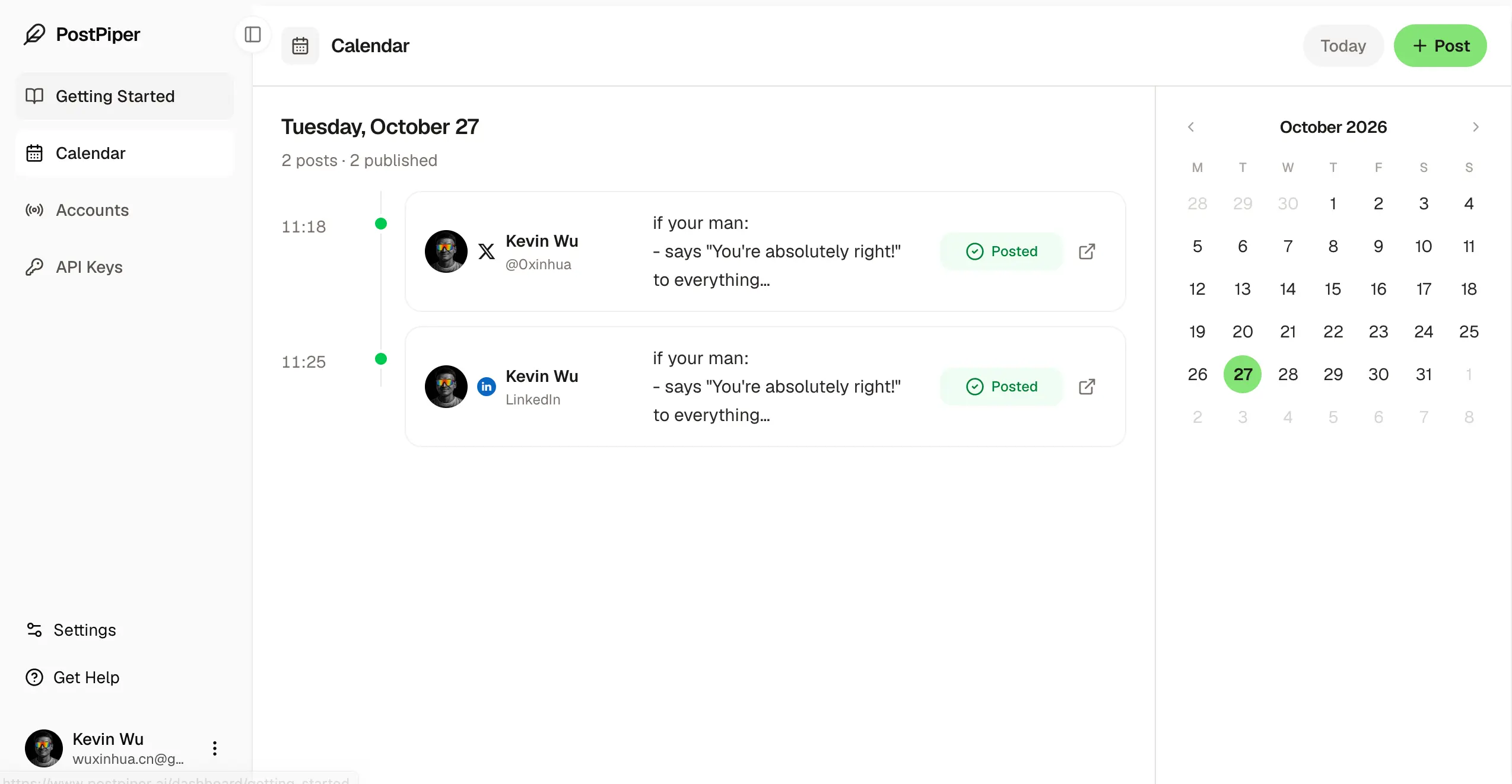
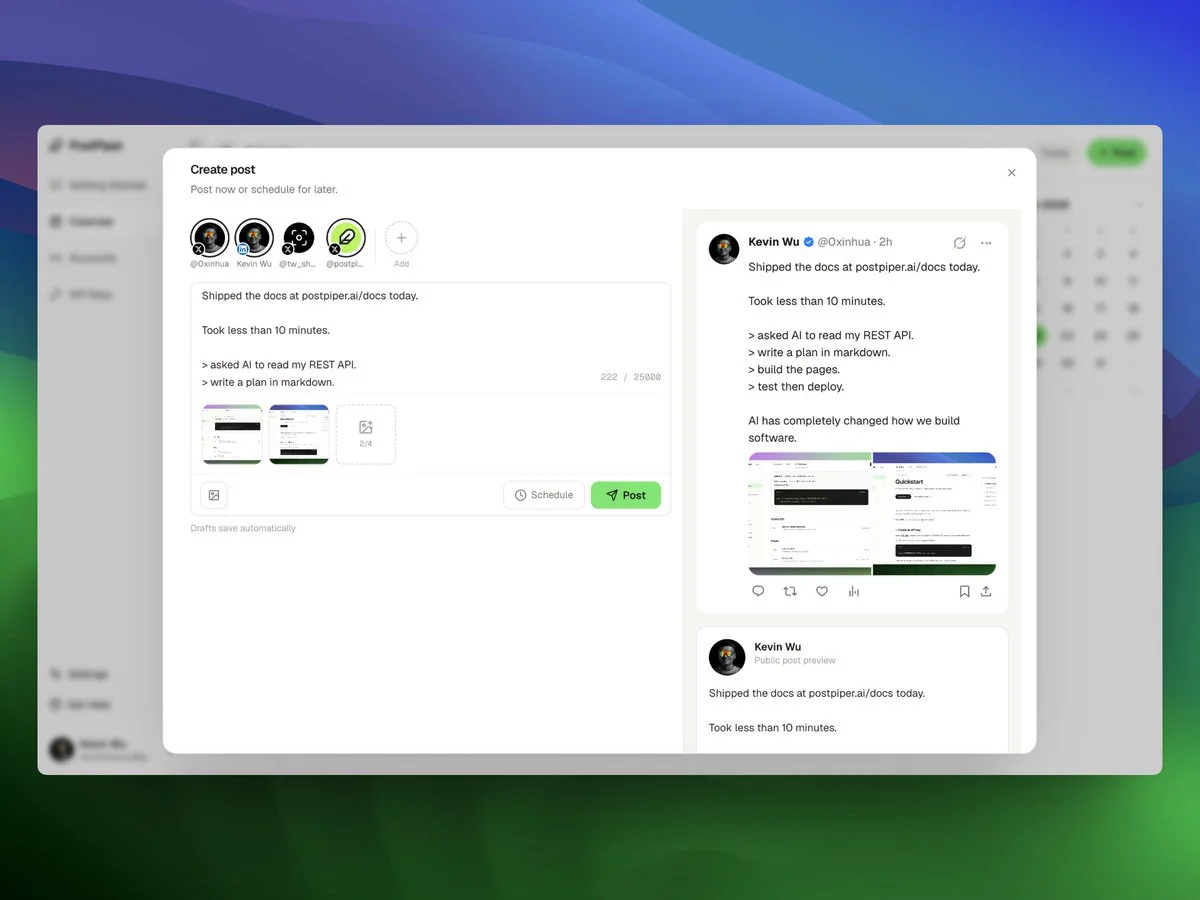
In the dashboard, sign in, connect an account, write your post, and pick a future time. Open the saved post in the calendar to check it. Our time picker uses your browser's local time, so check your device's time zone if your audience is somewhere else.
Can I schedule posts through an API or AI assistant?
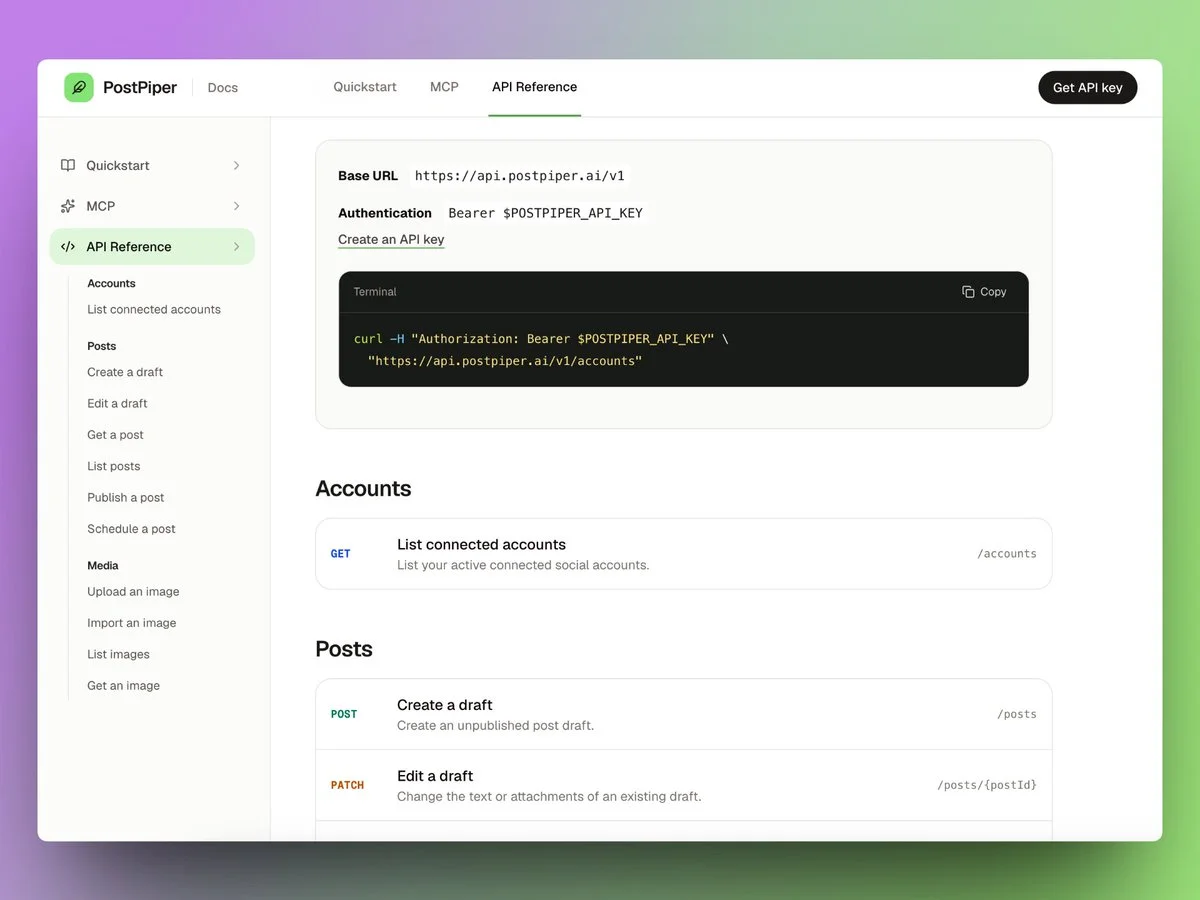
Yes. We offer a REST API and MCP server. Our API quickstart walks you through creating a key, listing your connected accounts, creating a draft, scheduling it with an explicit time-zone offset, and checking its status. Creating a draft won't publish it.
Our MCP setup guide shows you how to connect a compatible AI client.
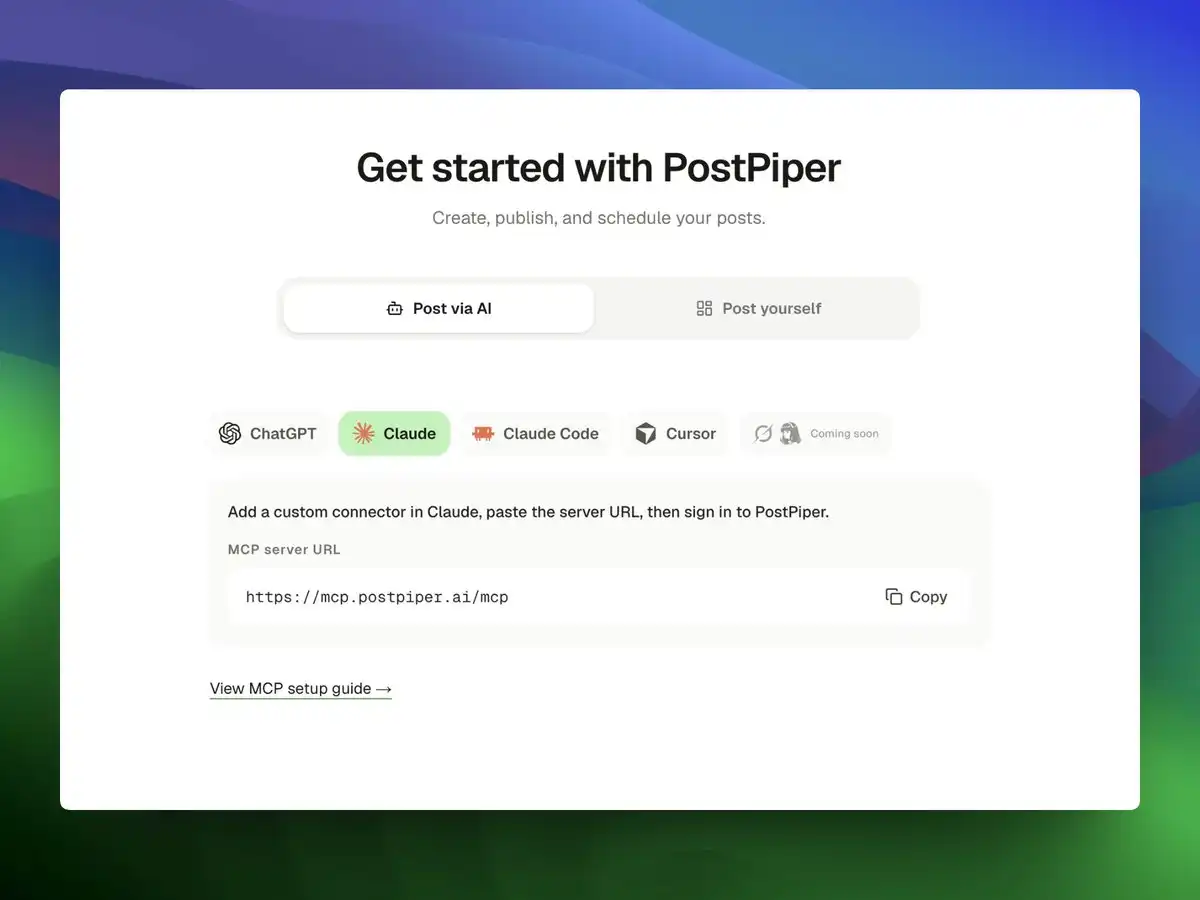
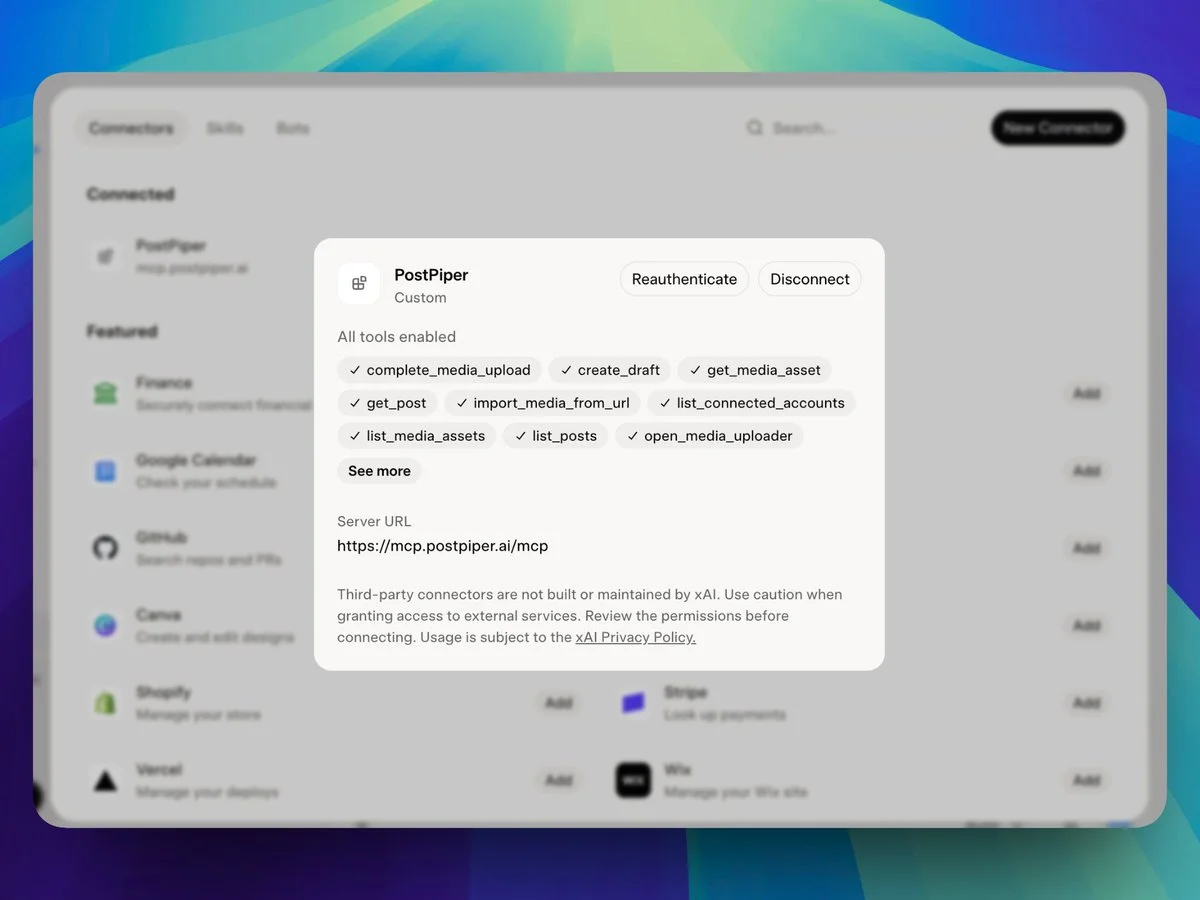
Keep a review step in any AI workflow. A useful request is: “Draft three posts from these release notes, show me the account and proposed publishing time for each, and wait for my review before scheduling.” That's a prompt I'd use. You'll still need to check whether your AI client actually waits for approval before scheduling.
Analytics are still marked as coming soon on our pricing page. Until they ship, use each network's own stats. Check our current plans, then try one post on each supported network you want to use.
Frequently asked questions
How can I schedule Instagram posts for free?
Buffer's Free plan includes up to three channels and 10 queued posts per channel. Adobe Express also includes a free Content Scheduler; its page lists up to 1,000 posts per month and reserves connecting up to three accounts per social channel for Premium. Check account eligibility and whether your content will publish automatically or require a notification. We don't currently offer Instagram scheduling in PostPiper. Our free schedulers guide covers more plan limits.
Can a social media scheduler publish without me being online?
Yes, if the post uses automatic publishing. It'll go out at the scheduled time without you finishing it. With notification publishing, you get a reminder and still have to complete the post. Check which method each scheduled item uses.
Can I schedule posts within Instagram?
Yes. Instagram provides in-app scheduling for eligible accounts and content. Look for the scheduling option in your account and check which formats it supports. Instagram's own scheduler and third-party tools can have different limits.